A tournament in 10 steps
From creating the tournament to the final standings, here is how OpenShuttle helps you through the day. Steps 1 to 3 are prepared beforehand; the others happen on the day.
Create the tournament and its categories
On the home screen, click New tournament and give it a name. OpenShuttle creates an .openshuttle file on your computer: the whole tournament is saved there, action after action. Prepare it quietly at home in the days before; it can still change on the day.
In Info, set:
- the categories: one or two per tournament. With two categories, one is for men and the other for women (for example men’s doubles and women’s doubles), and a player can only be entered in one of them. Mixed doubles always runs on its own. Each category has a short code shown everywhere (MS, WS, MD, WD, XD);
- the number of courts;
- the minimum rest between two matches, in minutes.
Running the same tournament every year? On the home screen, Duplicate copies the categories, format and courts of a previous tournament, without the entrants.
-

Home: recent tournaments and New tournament -
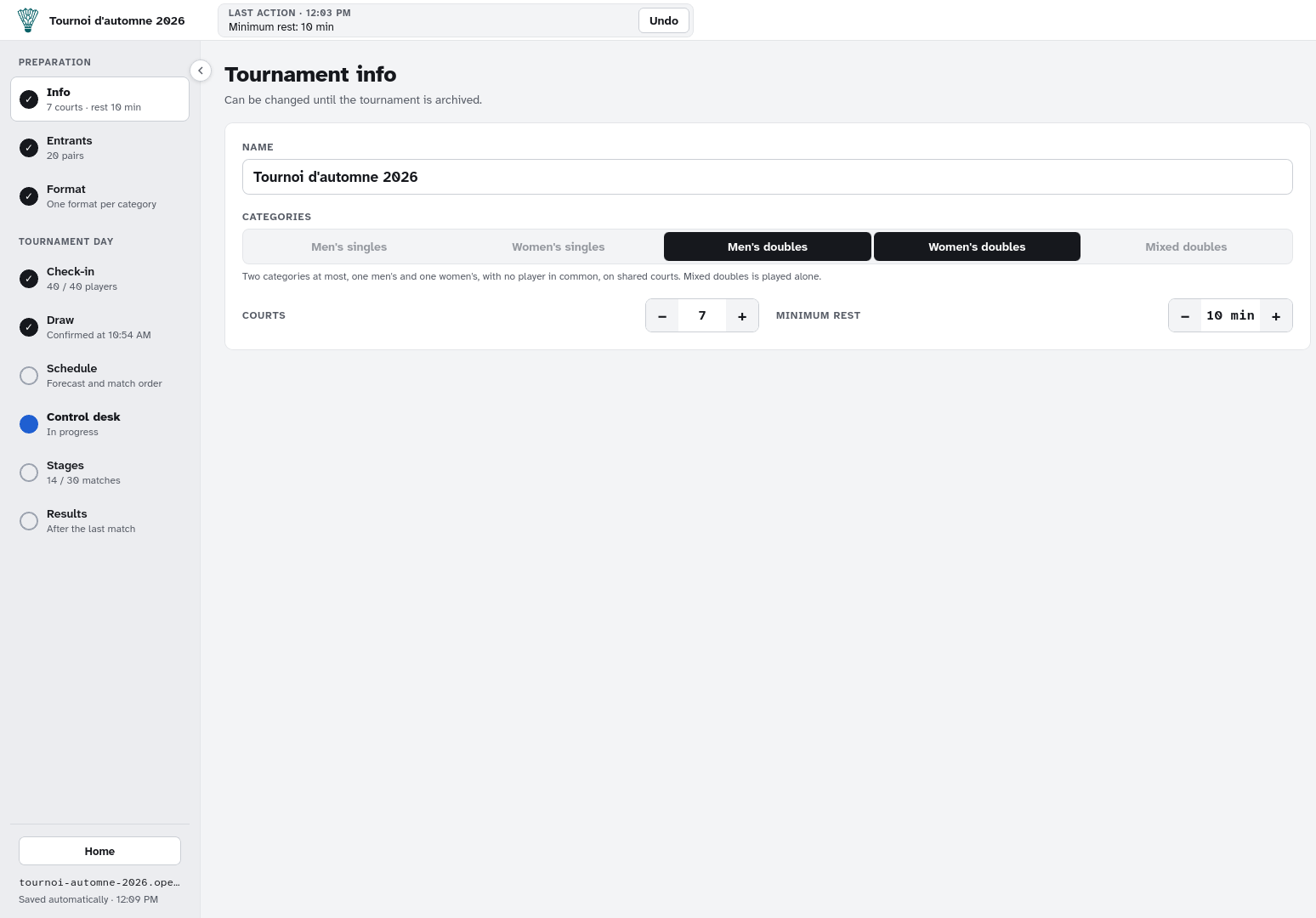
Info: categories, courts and minimum rest

Add the entrants
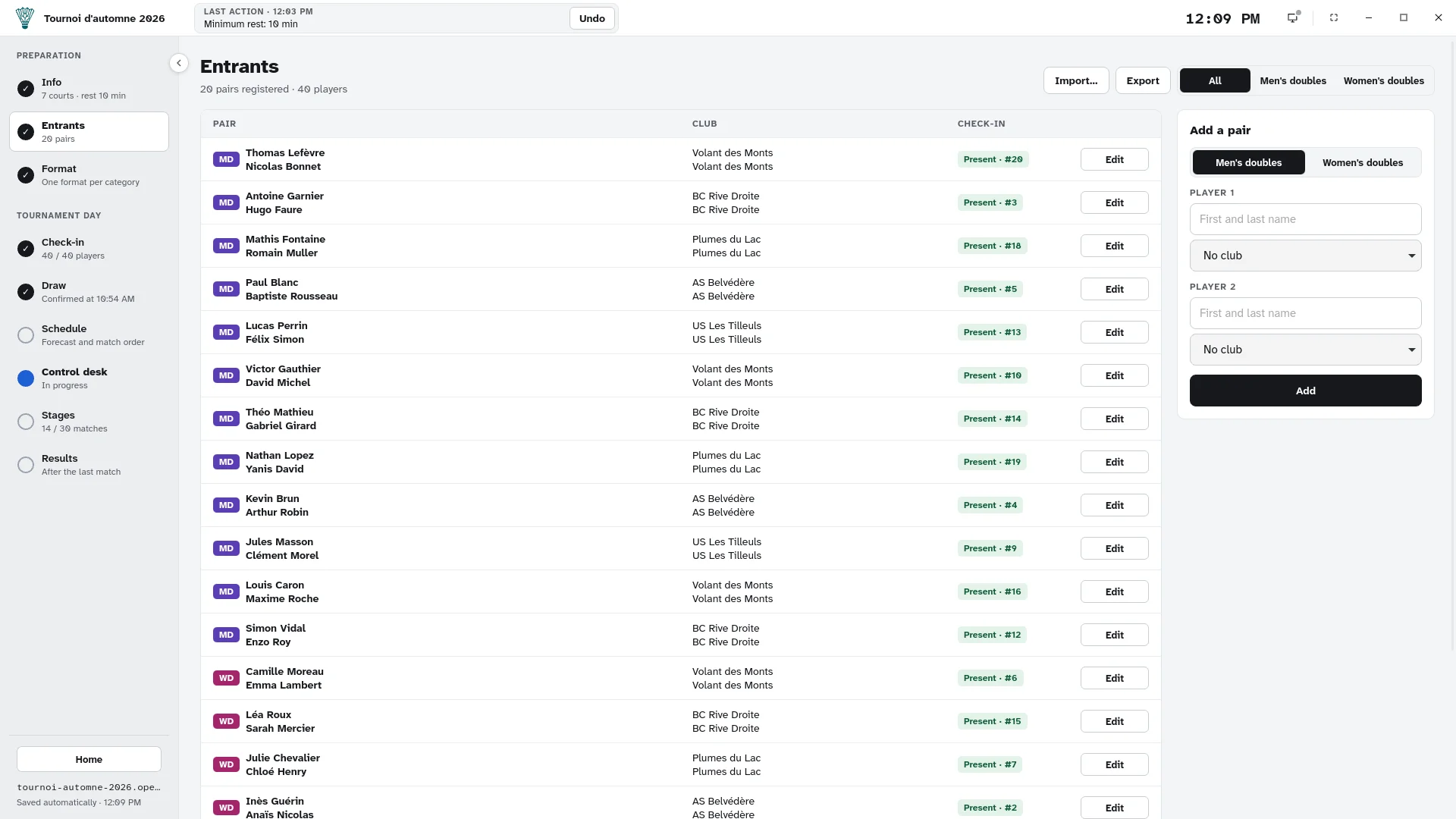
In Entrants, add the entrants of each category: a player in singles, a pair in doubles. Each player has a name (first and last name) and a club, picked from the club list or added on the way.
Already have the list in a spreadsheet? Use Import… with a CSV file with these columns:
| Category | Player 1 | Club 1 | Player 2 | Club 2 |
|---|---|---|---|---|
| MD | Lucas Perrin | BC Lyon | Félix Simon | BC Lyon |
The separator can be a semicolon or a comma, and the category is written with its short code. Invalid or already entered rows are skipped and reported by line number. The whole import is cancelled by a single Undo.
Export writes the same format: handy to keep the list from one year to the next.
Two players with the same name? OpenShuttle warns you without blocking: namesakes exist. On the day, the bib number tells them apart.
-
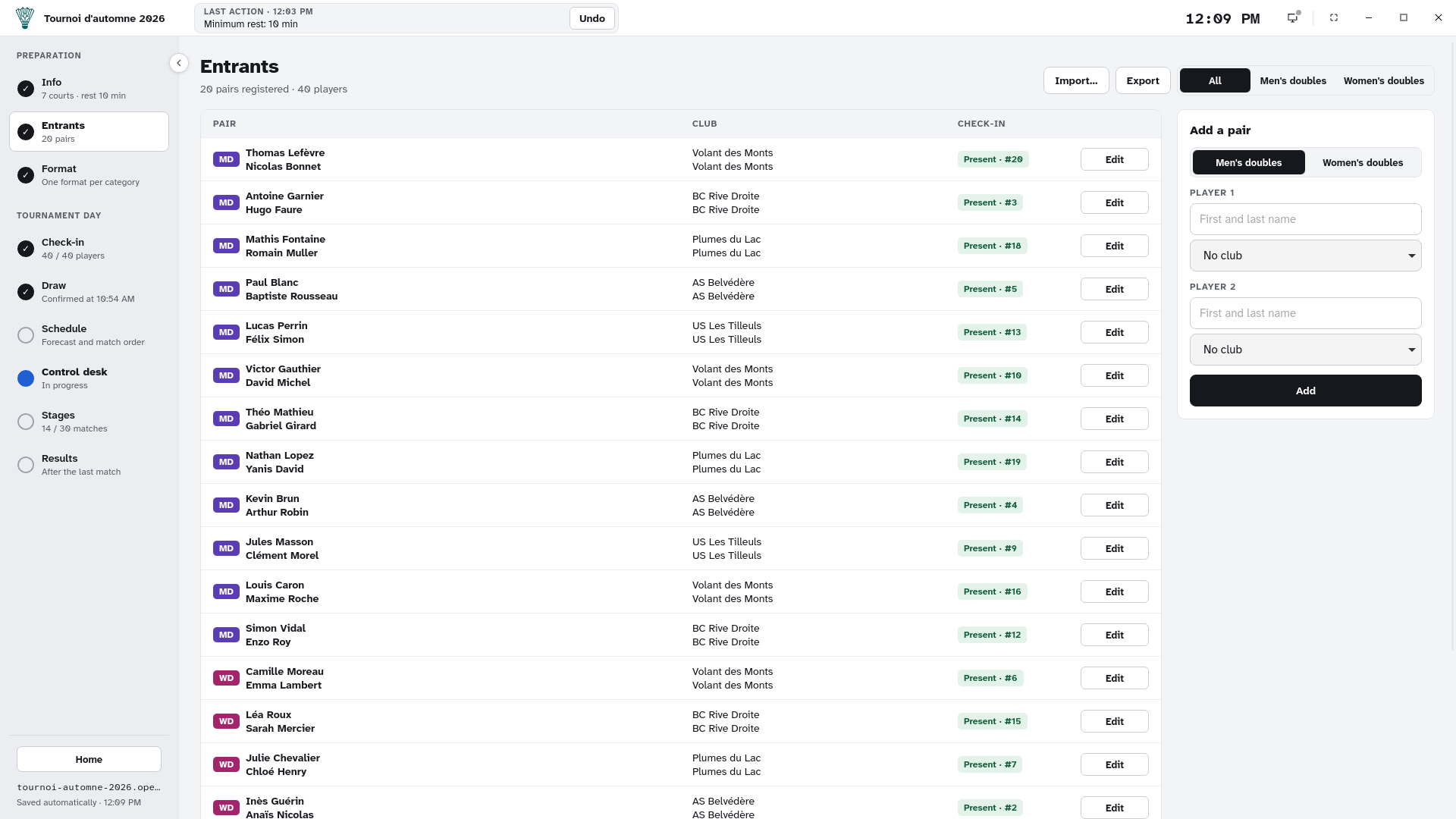
The entrants list and the entry form
Choose the format
In Format, each category has its own format: a chain of stages. The easiest way is to click Start from a preset… and pick a ready-made format, for example:
- Pools only;
- Pools + main bracket;
- Pools + main + consolation;
- Full placement bracket, single elimination right from the draw.
You can also build the format yourself:
- a pools stage: pool sizes in order of preference (for example 4, else 5) or a fixed number of pools, tiebreak order, comparison across pools;
- a bracket: single elimination, with every place played (full placement) or ties by round lost;
- advancement rules: which ranks of which stage go to which later stage (ranks 1 to 3, the best 4th places, the rest…);
- the win condition of each stage: sets to win, points per set, point cap, or timed match with a golden point, and the estimated time on court used by the schedule.
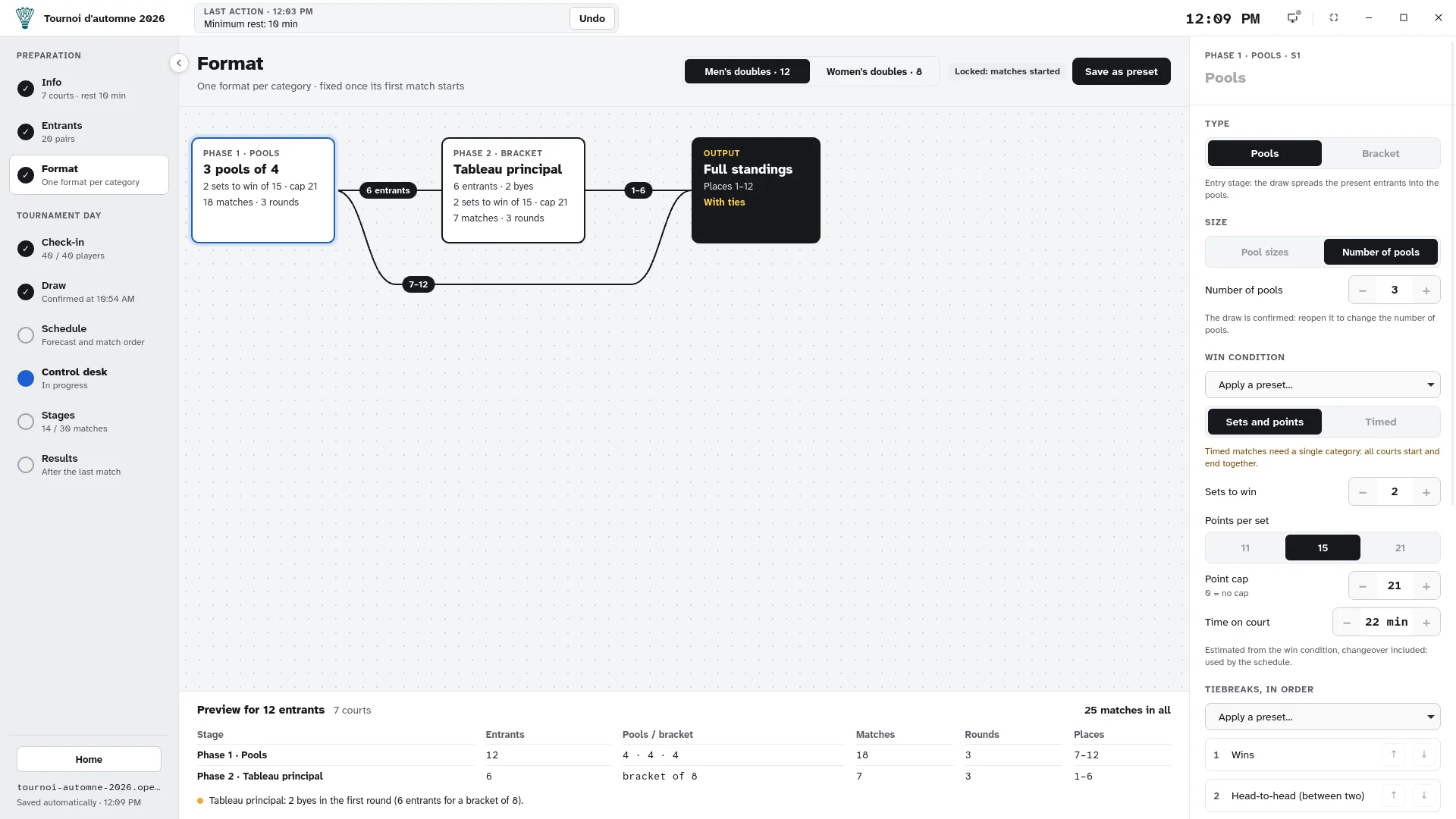
Below the editor, the simulation shows for your number of entrants the pools, the number of matches and rounds, and the places played. A format you like can be saved as a preset, ready for your next tournaments.
Timed matches are played in rounds: every court starts and ends together. They are only available when a single category plays.
The format can be changed until the first match of the category is called or scored.
-
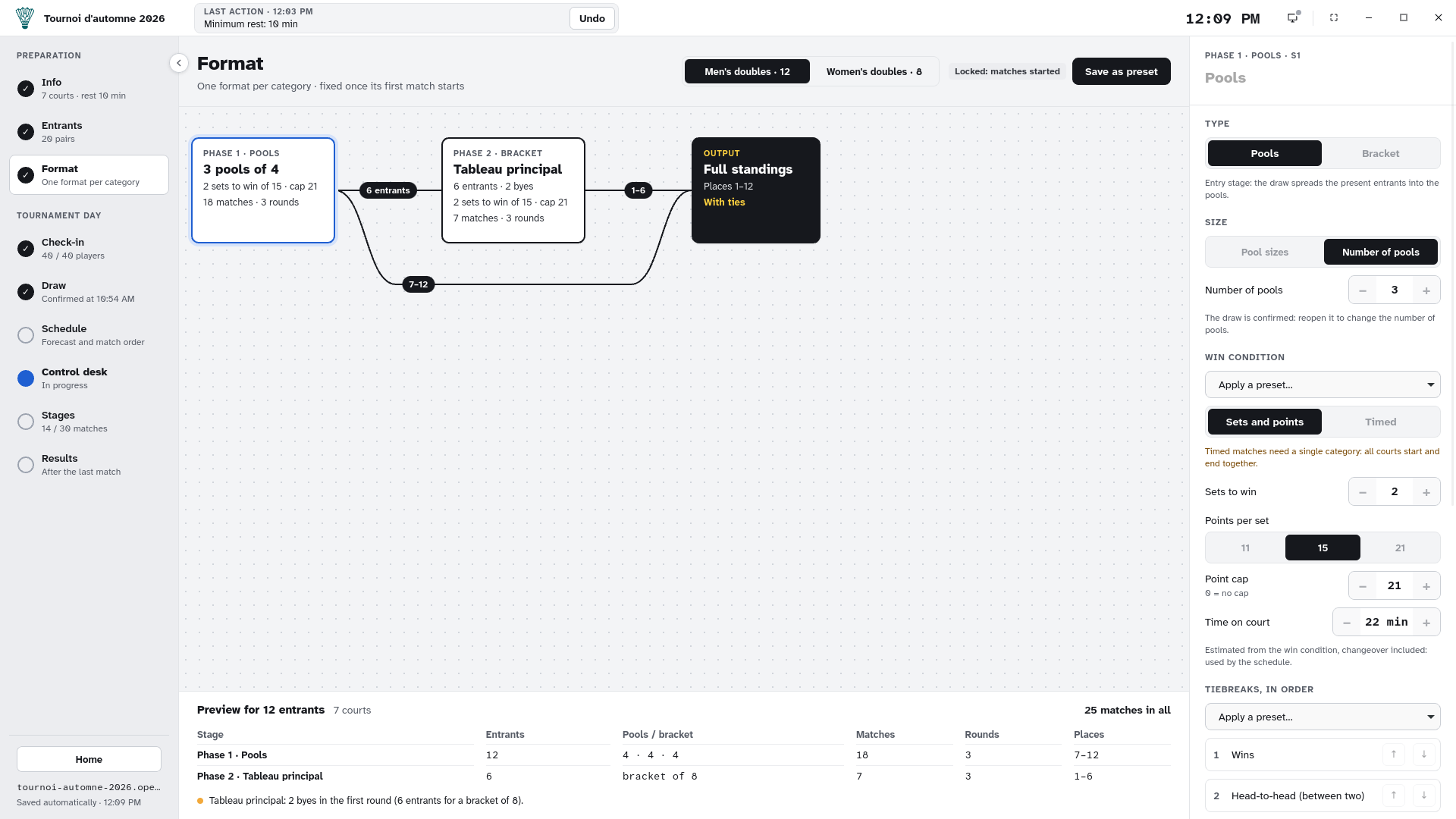
The stage graph, its settings and the preview
Check in the players
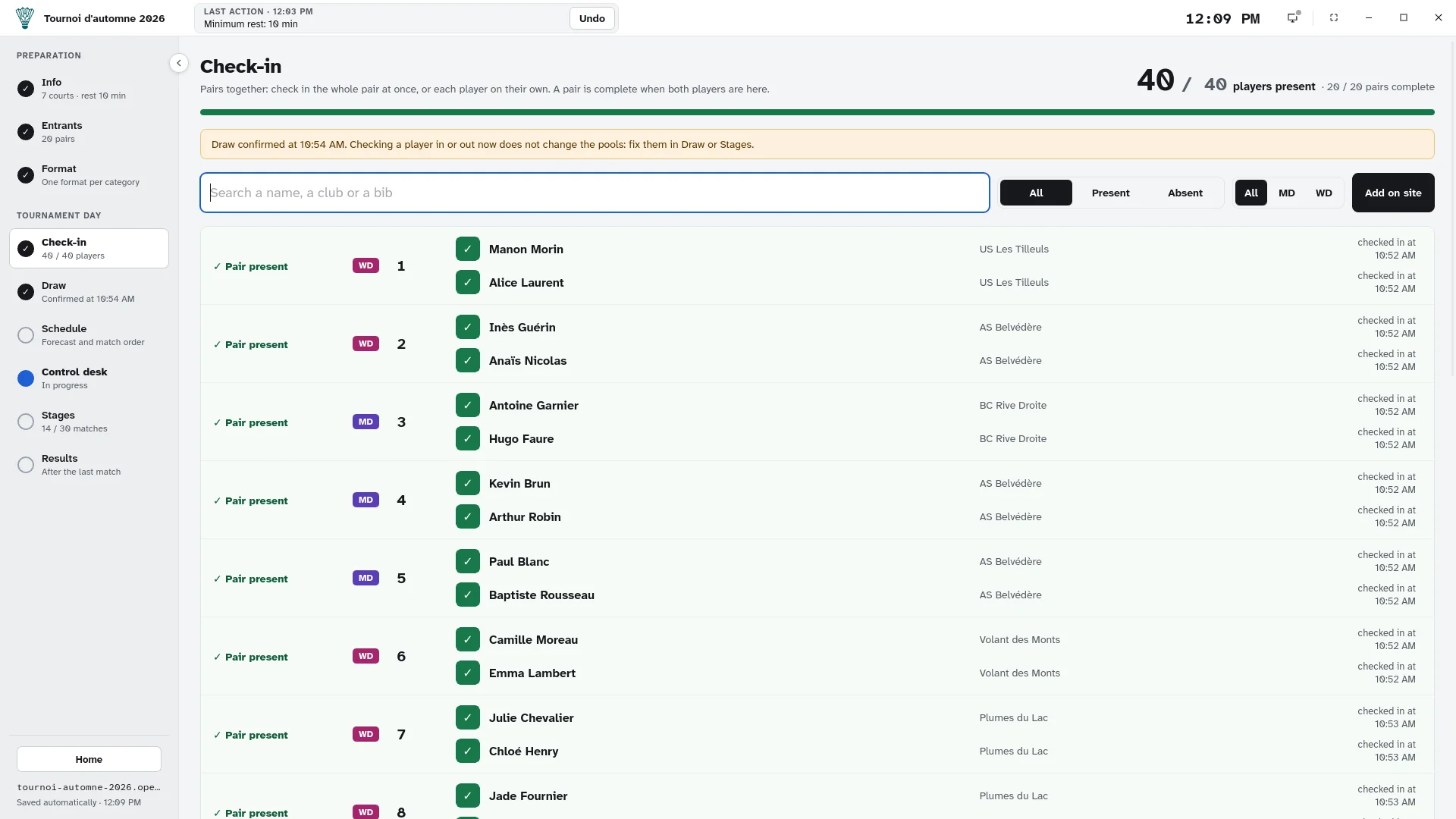
On the day, open Check-in. The list shows each player with their category, partner and bib, and a search by name, club or bib number.
- Click Present when a player arrives. A pair is complete when both players are checked in; Check in the pair checks in both at once.
- The bib number is given at the pair’s first check-in. It then shows everywhere next to the name, on the control desk as on the display screen.
- Counters at the top show where you stand, for example “40 / 42 players · 20 / 21 complete pairs”.
- A last-minute entry? Add on site. Someone absent? Simply remove them from the list.
-
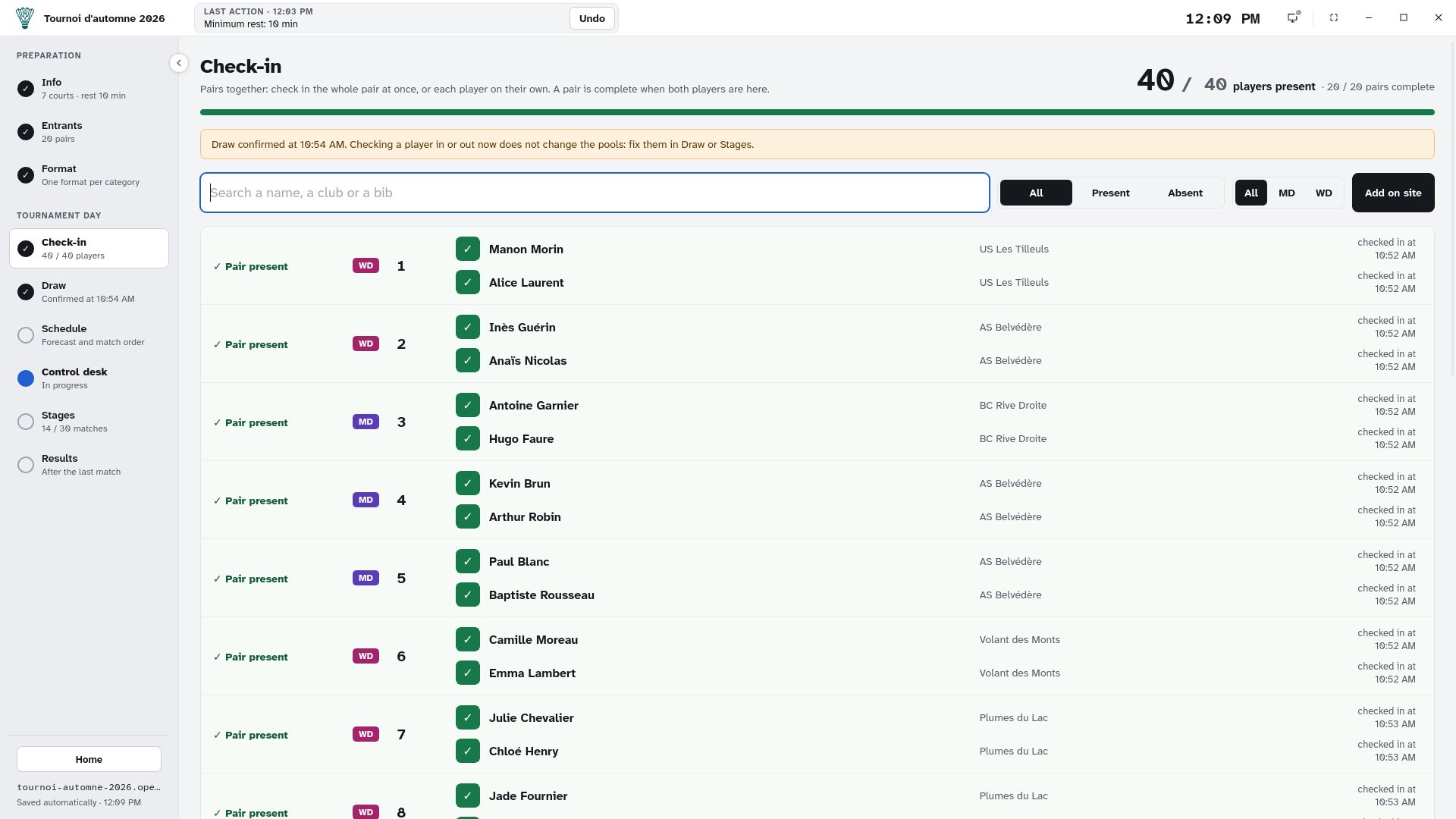
Check-in with its counters and search
Run the draw with seeds
In Draw, each category has its own section. Only present entrants (all their players checked in) are drawn.
- Rank your seeds: add them with Seed, then put them in order by drag and drop or with the arrows. OpenShuttle has no federation ranking: you decide who the favourites are.
- Click Draw the pools. Seeds are placed in a snake (A, B, C, C, B, A…), the others at random, each into the pool where their club has the fewest players.
- Check: badges flag two players from the same club in a pool, or a pool of a different size. These are warnings, not blocks. Adjust by hand with drag and drop, or draw again.
- Click Confirm the draw. The pool matches are then generated.
A latecomer checked in after the draw shows up apart: drag them into a pool.
-
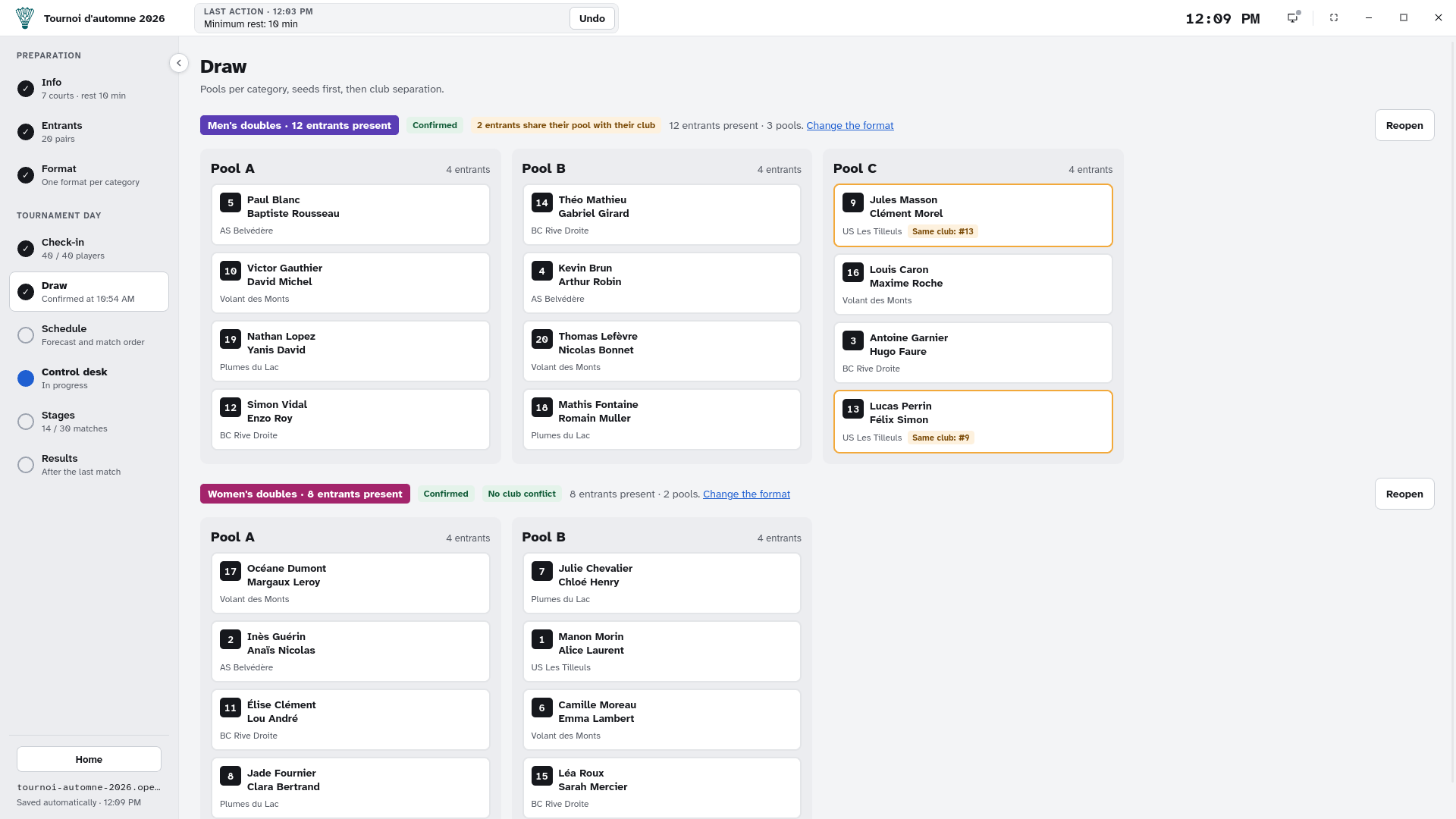
The drawn pools, per category
Set up the schedule
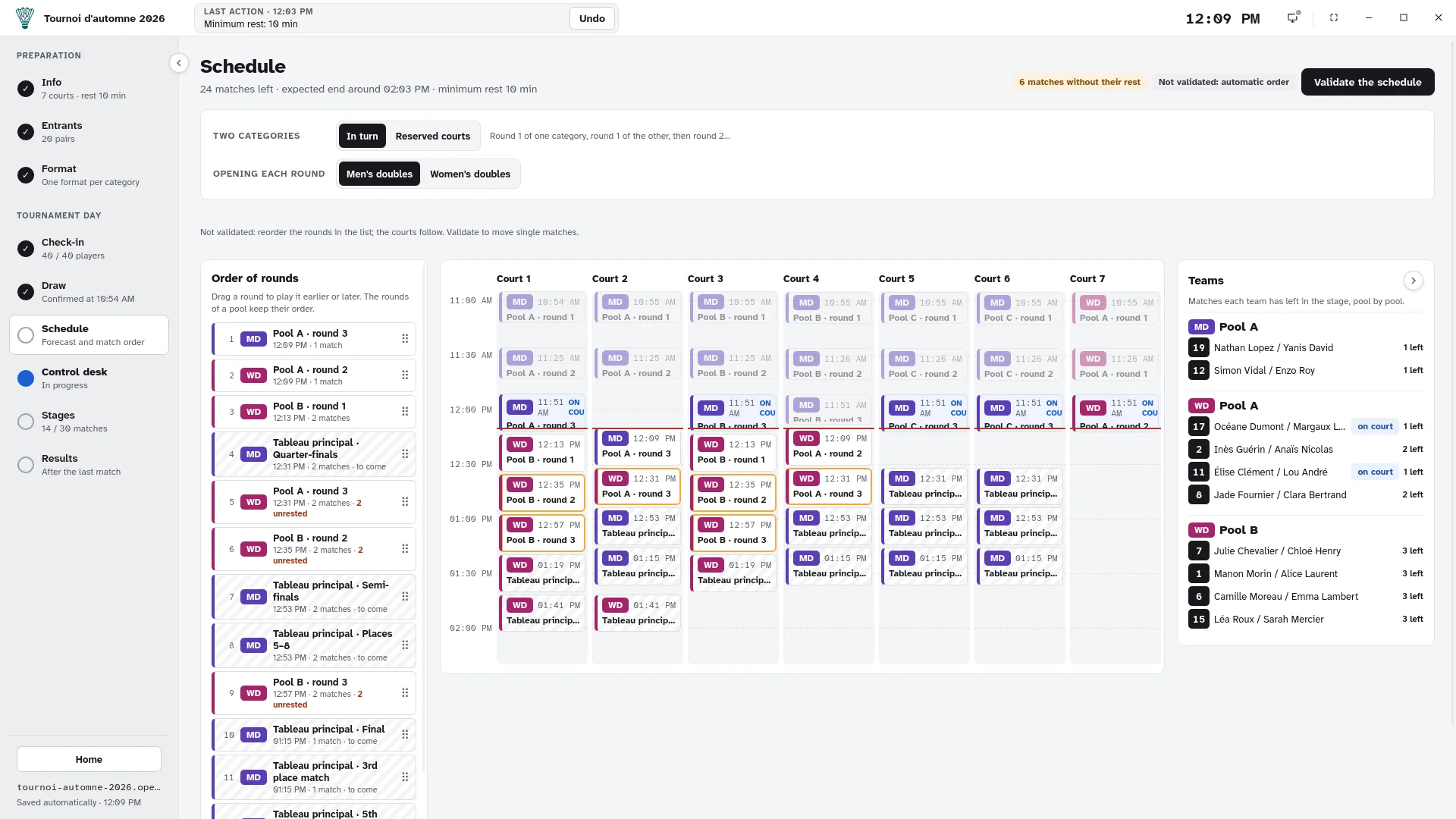
The Schedule forecasts every match left, court by court, with its estimated time, from the time on court of each win condition. It also sets the order of the calls.
Before validation, you work on rounds: round 1 of pool A, round 1 of pool B, the bracket rounds… The automatic order keeps everyone playing at about the same pace. Drag and drop the rounds in the list to change the order: the timeline beside it shows the result live. The rounds of a pool always keep their order.
With two categories, choose how they share the courts: in turn (round 1 of one category, round 1 of the other, then round 2…) or reserved courts (each category keeps its courts until it is over).
Validate the schedule once you are happy with the order: the match order is then fixed. You can then move a single match on the timeline by drag and drop. Recompute starts again from the automatic order, and Back to blocks reopens the order of the rounds.
The Teams tab shows how many matches each team has left. When a player has not had their minimum rest, the match is flagged: the control desk decides.
-
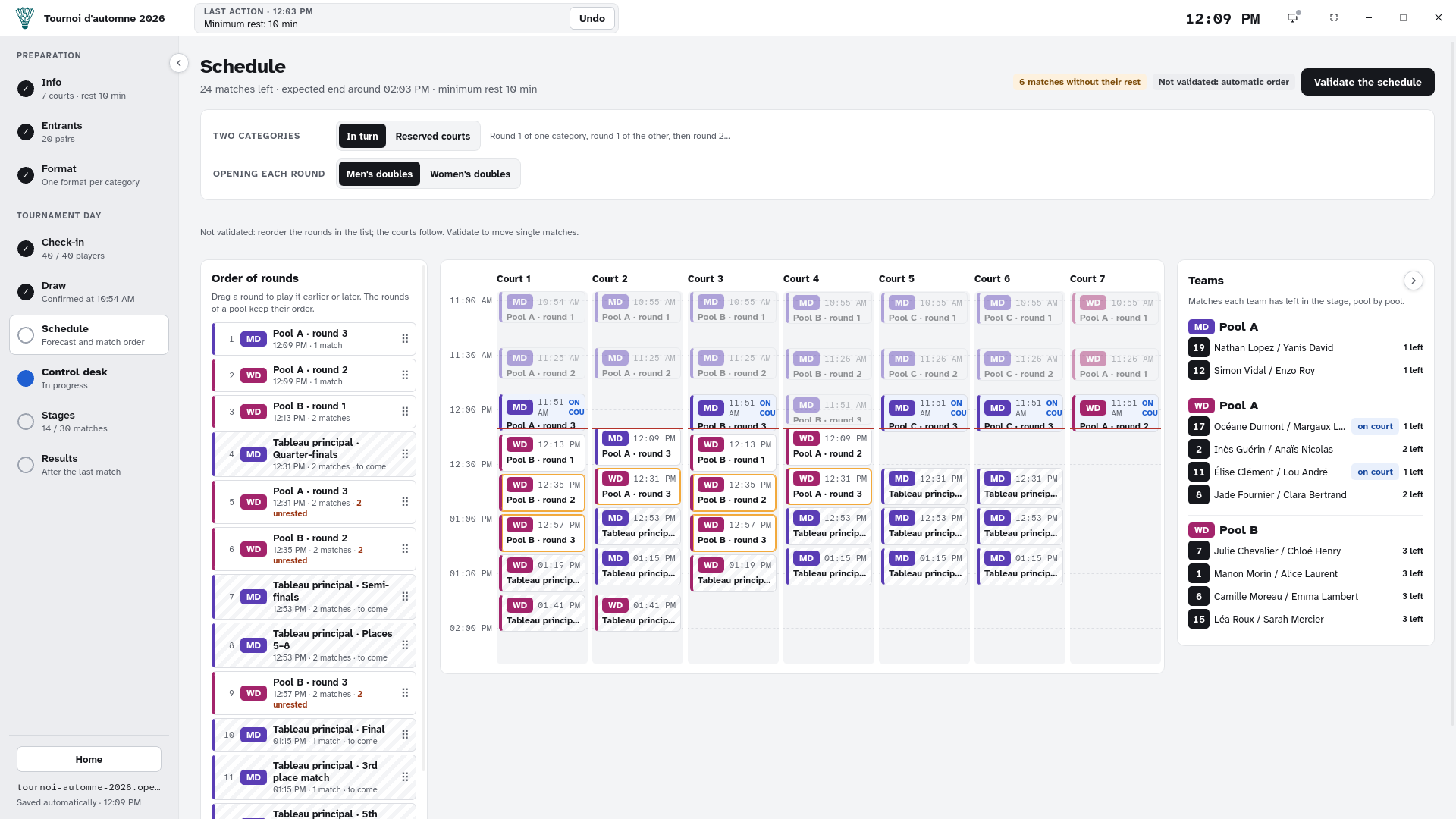
The round order, the court timeline and the teams
Run the matches from the control desk
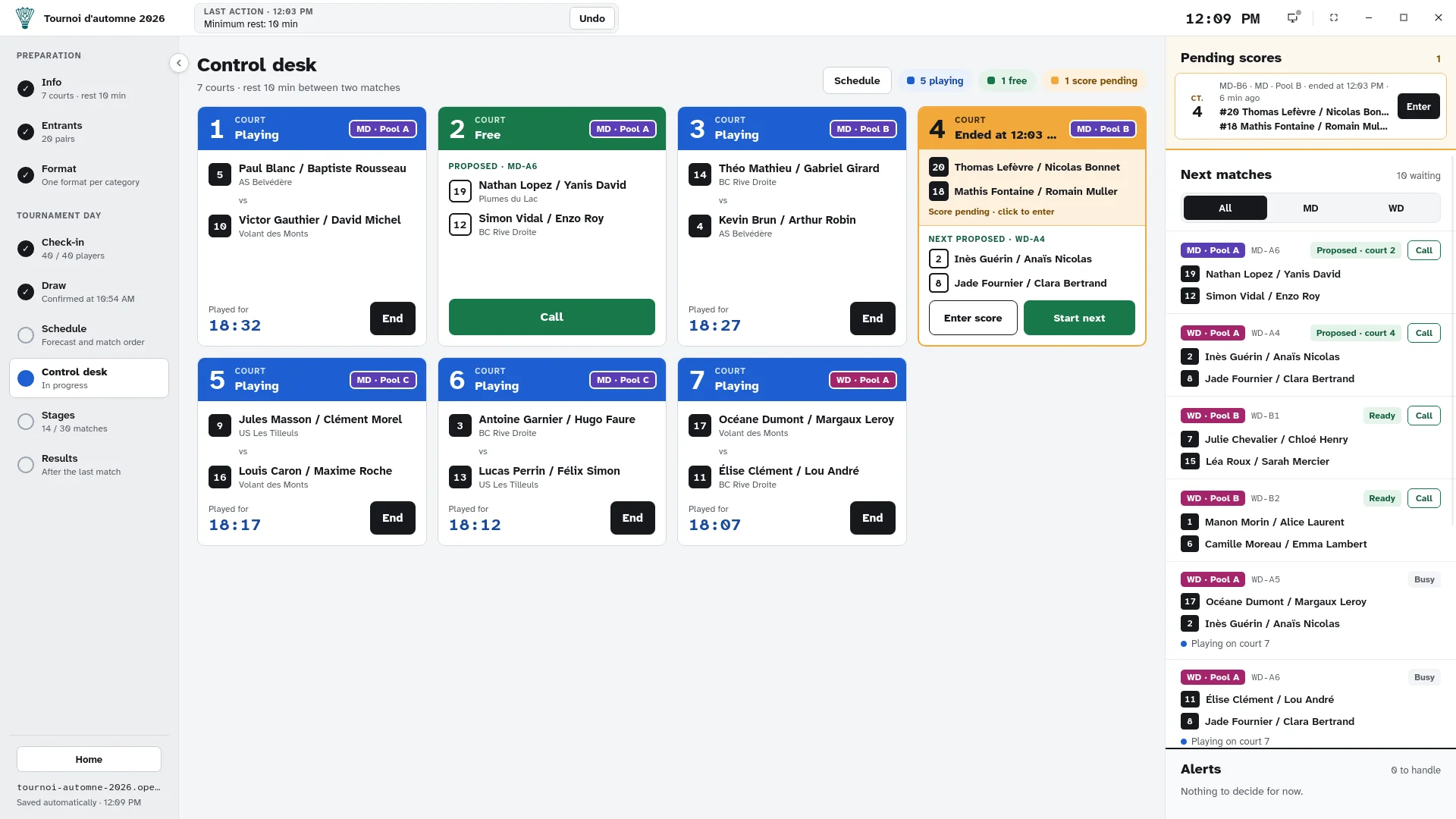
The Control desk is where you will spend most of the day. Each court has its card, in one of three states:
- Free: the next match proposed by the schedule, with the Call button. The match shows at once on the display screen;
- Playing: the entrants, the pool and the time played, with End when the match is over;
- Finished: the match over and the next one proposed, with Enter score and Start next.
Pending scores. No time to enter a score? Start the next match: the score waits in the Pending scores column, with its court and end time, and can be entered later in any order. Players’ rest counts from the real end of the match.
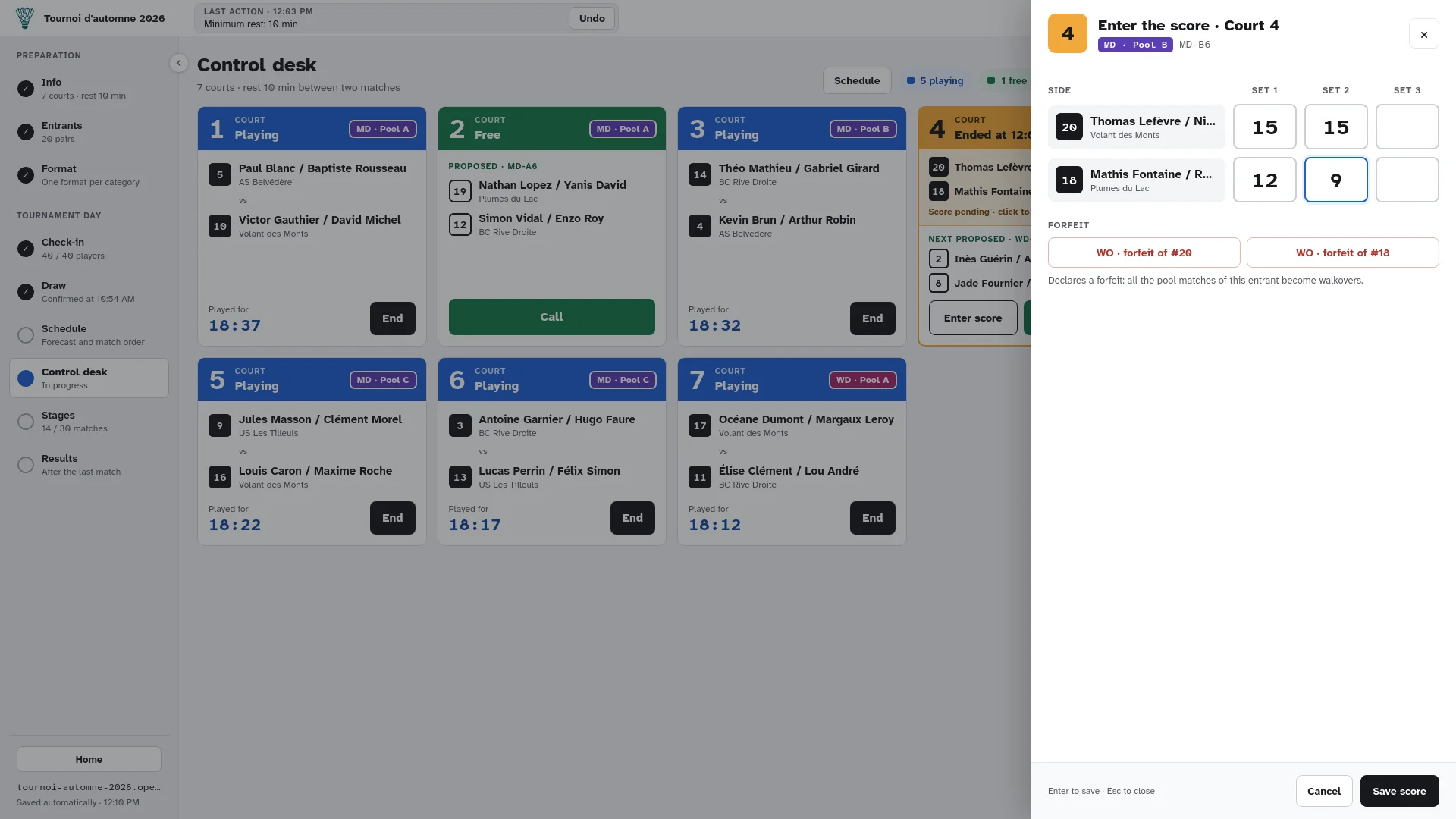
Entering a score. The panel opens from the court, with as many sets as the win condition needs. Enter saves, Escape closes.
Next matches. The right column lists the queue, with a category filter, and says why a match is not ready: player resting for X minutes, player on another court. A proposed match with a player who has not had their rest is flagged; you can call it anyway.
A forfeit. In the score panel, Forfeit asks for confirmation. In a pool, every match of the entrant becomes a walkover: the win counts for the opponent, left out of sets and points, and the entrant ranks last in the pool. In a bracket, a forfeit counts as a loss.
Timed matches. A banner above the courts starts the round, shows the shared countdown, then Whistle the end sends every match to the pending scores. Nothing stops on its own: the control desk decides.
A slip? Undo, in the top bar, reverts the last action.
-
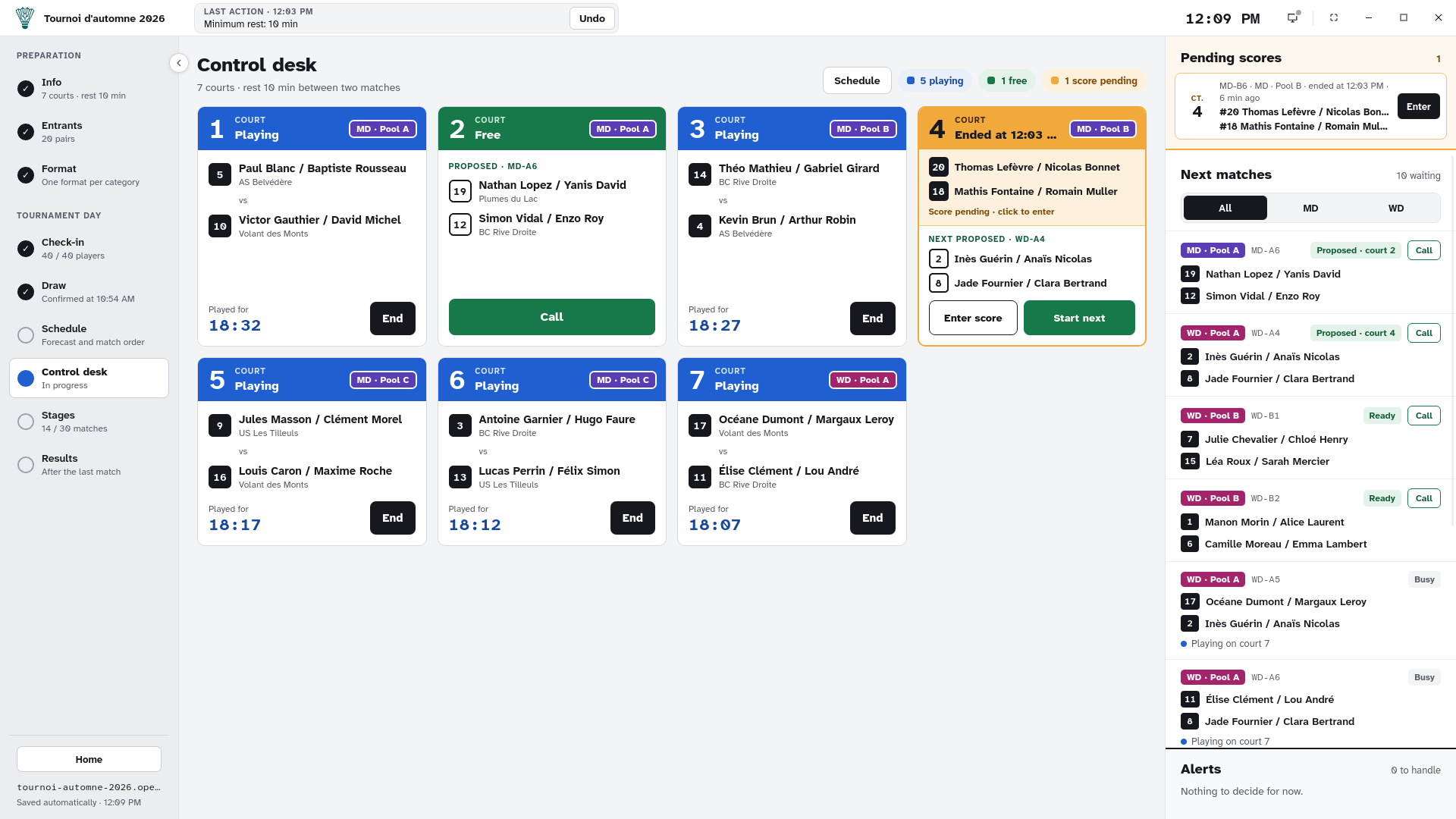
Courts, pending scores and the queue -
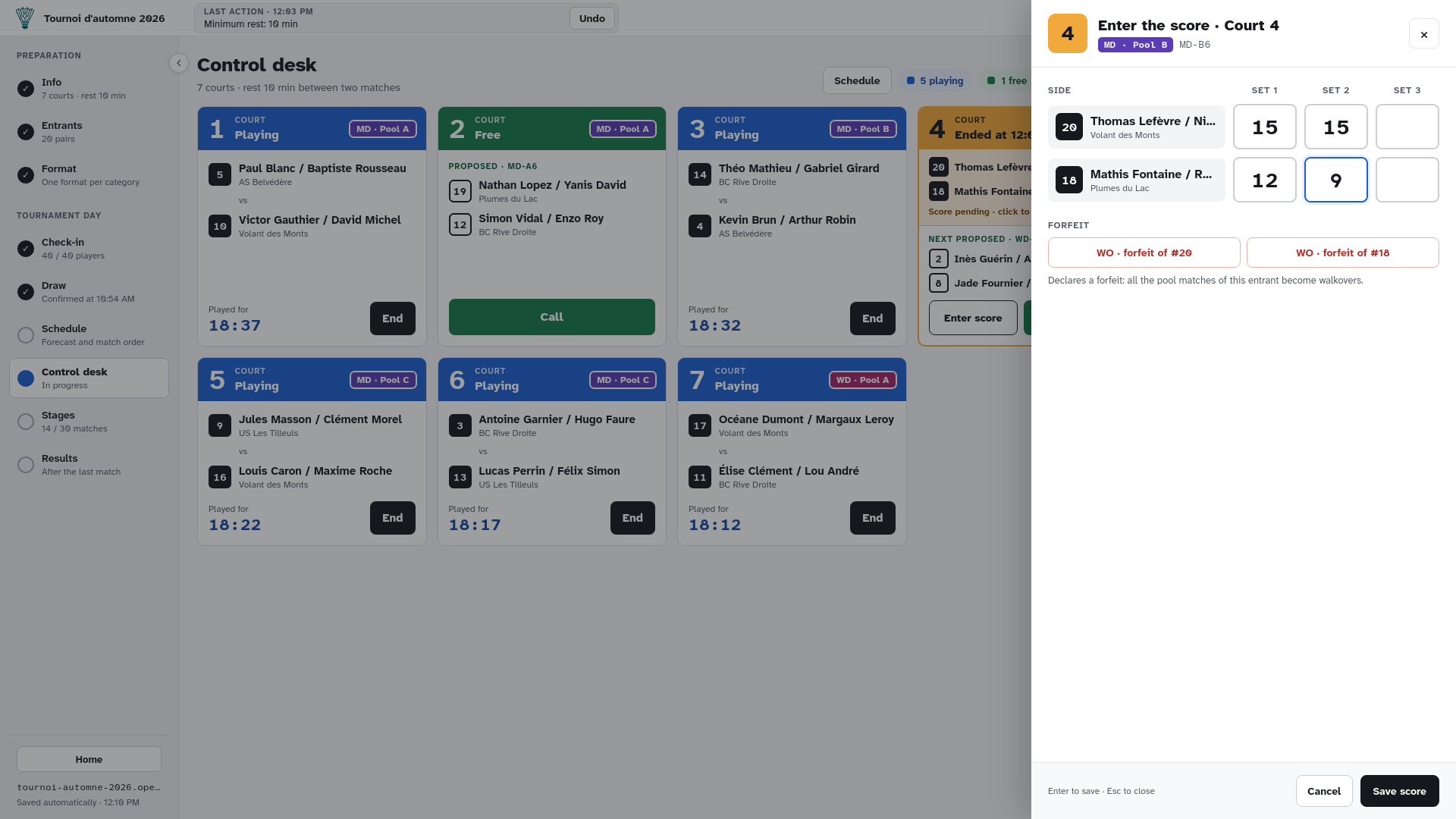
Entering a score, with the forfeits
Show the display screen on a second screen
Plug a projector or a TV into the control desk computer over HDMI. In the top bar, the display screen button opens a second window and lets you choose the monitor; make it full screen with its own button or a double-click.
The display screen shows, in very large type:
- the called match, with its court and the players’ bib numbers;
- the previous calls and the grid of courts playing, free or finished;
- pool standings and brackets, rotating automatically.
With two categories, matches are mixed and each one carries a highly visible category code. During a timed round, the screen shows the round’s courts and a large shared countdown.
Nobody touches it: it updates by itself on every action of the control desk.
-
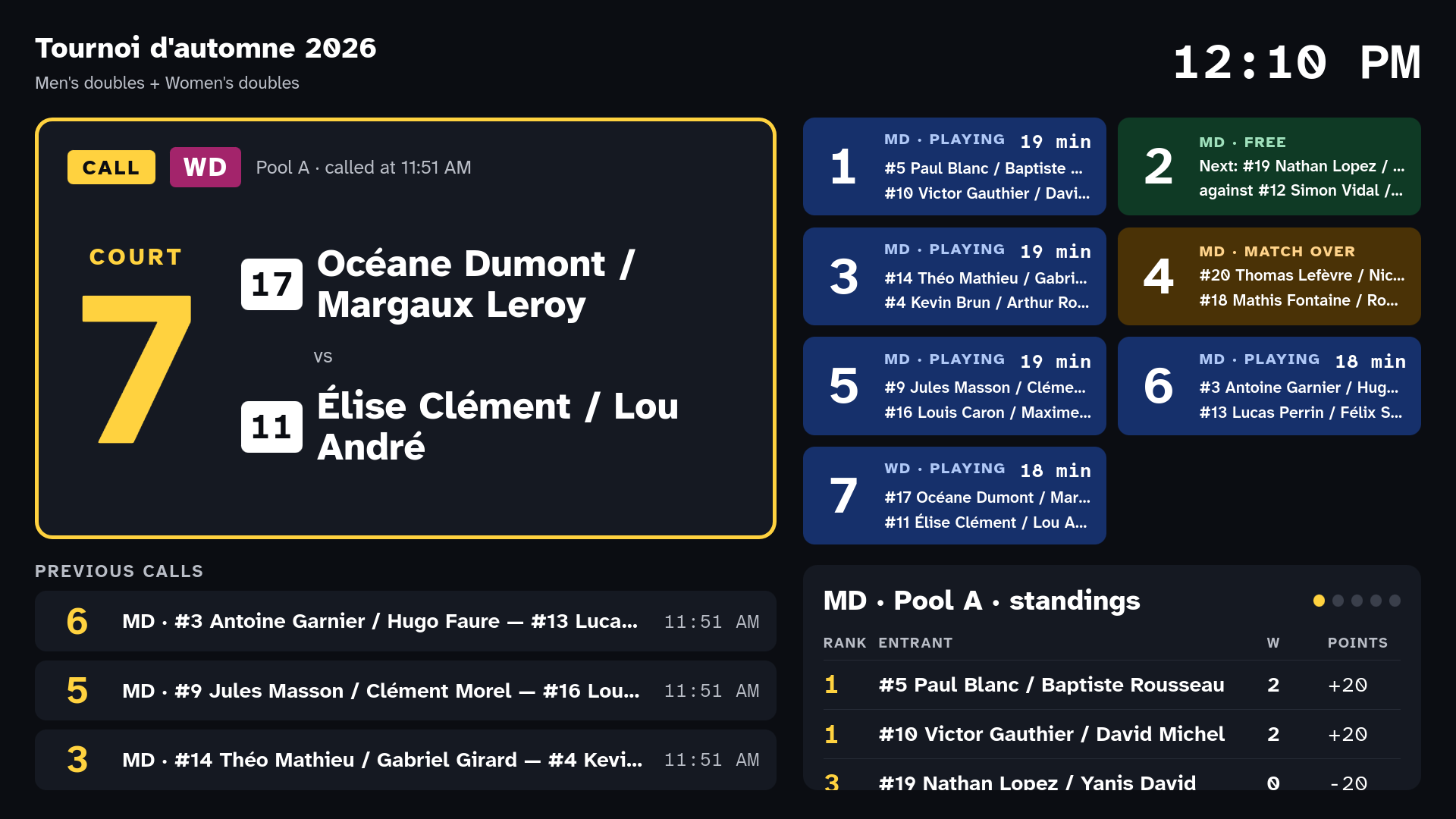
The display screen, as the hall sees it
Follow the stages and make corrections
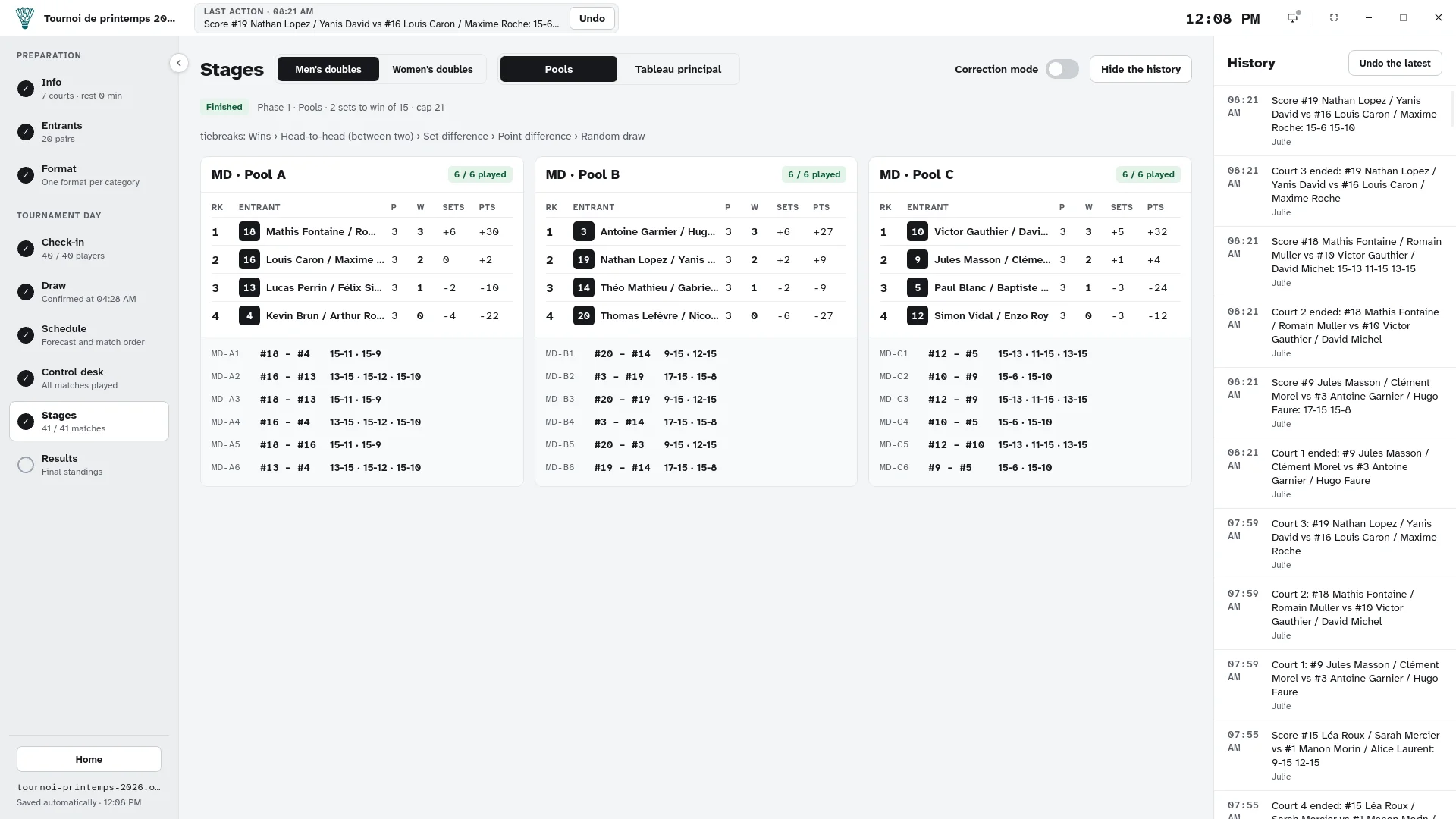
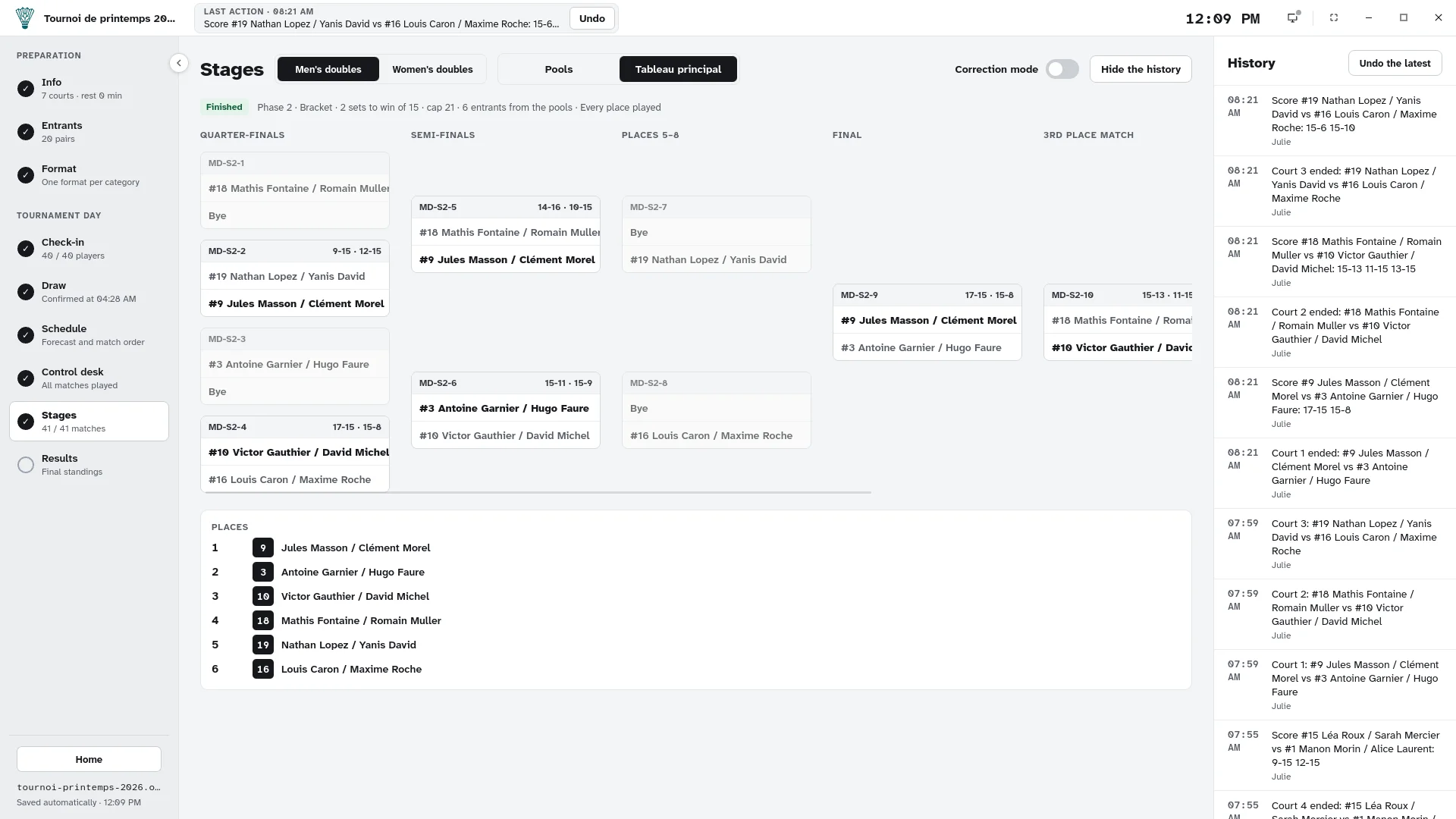
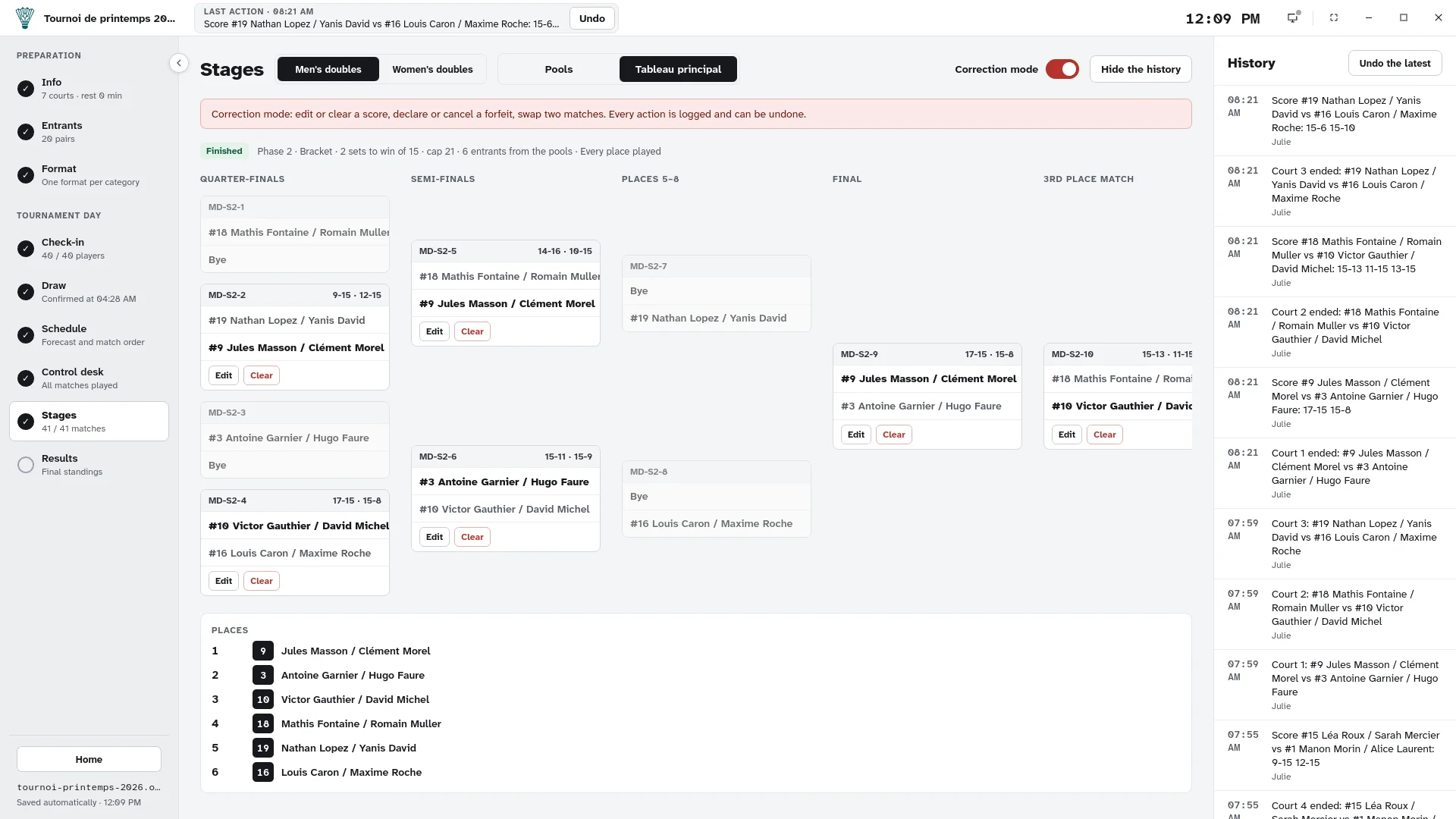
The Stages screen shows, category by category, the standings of each pool and the tree of each bracket.
Pool tiebreaks follow the order chosen in the format: wins, head-to-head (between exactly two entrants), set difference, point difference, then a random draw. Always differences, never ratios: walkovers stay neutral. If two entrants are still tied in a finished pool, Draw lots settles it.
Later stages are filled once the stages feeding them are complete: Fill from the pools places the qualified entrants by the advancement rules, keeping entrants from the same pool apart as long as possible. Check and swap two slots if needed before the first match.
Correction mode lets you, at any time:
- edit or clear a score;
- declare or cancel a forfeit;
- swap two matches not played yet.
Every action is recorded in the history, with its time, and can be undone. OpenShuttle warns about inconsistencies but never blocks an action that is possible.
-
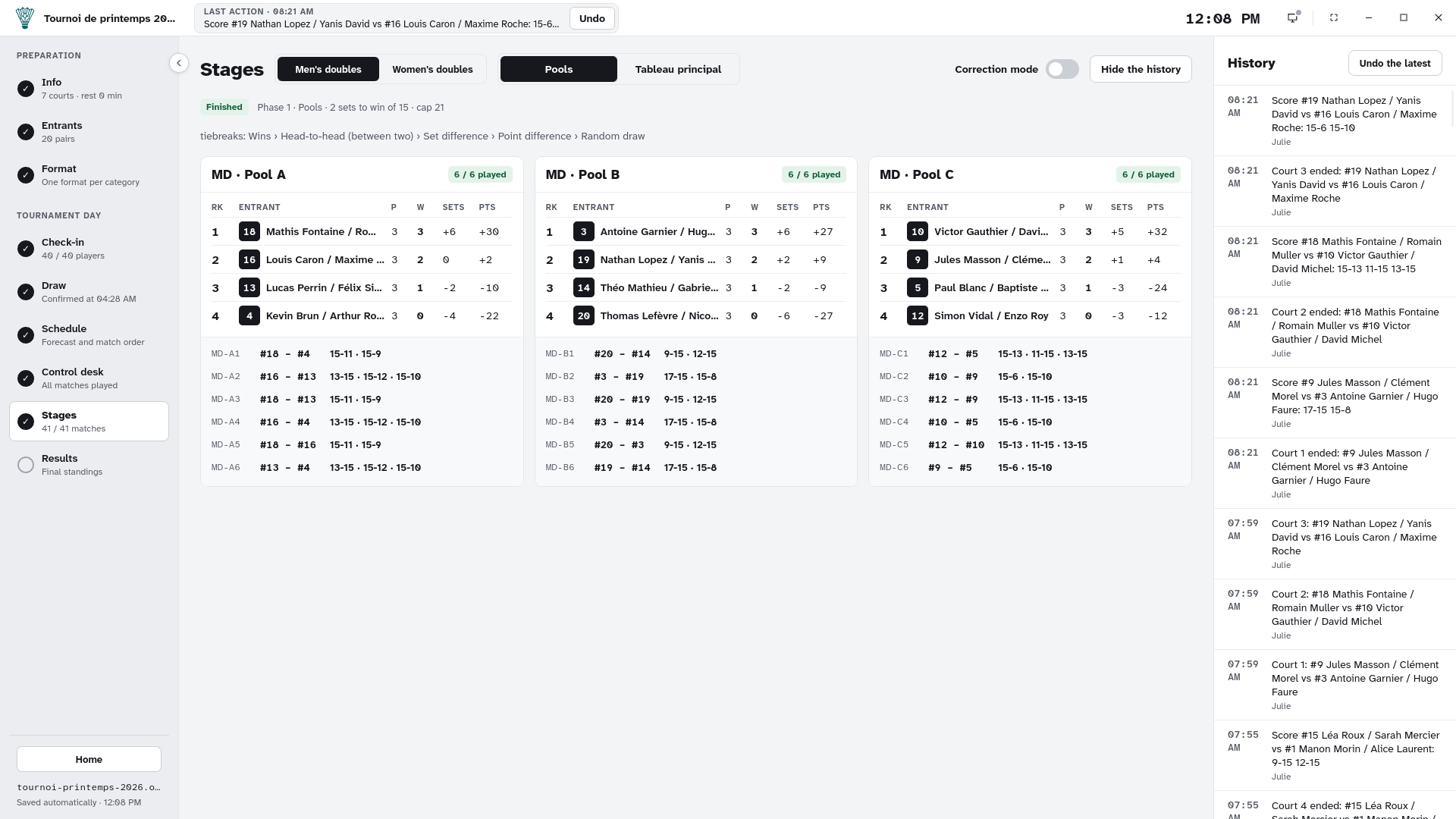
A pool’s standings and the history -
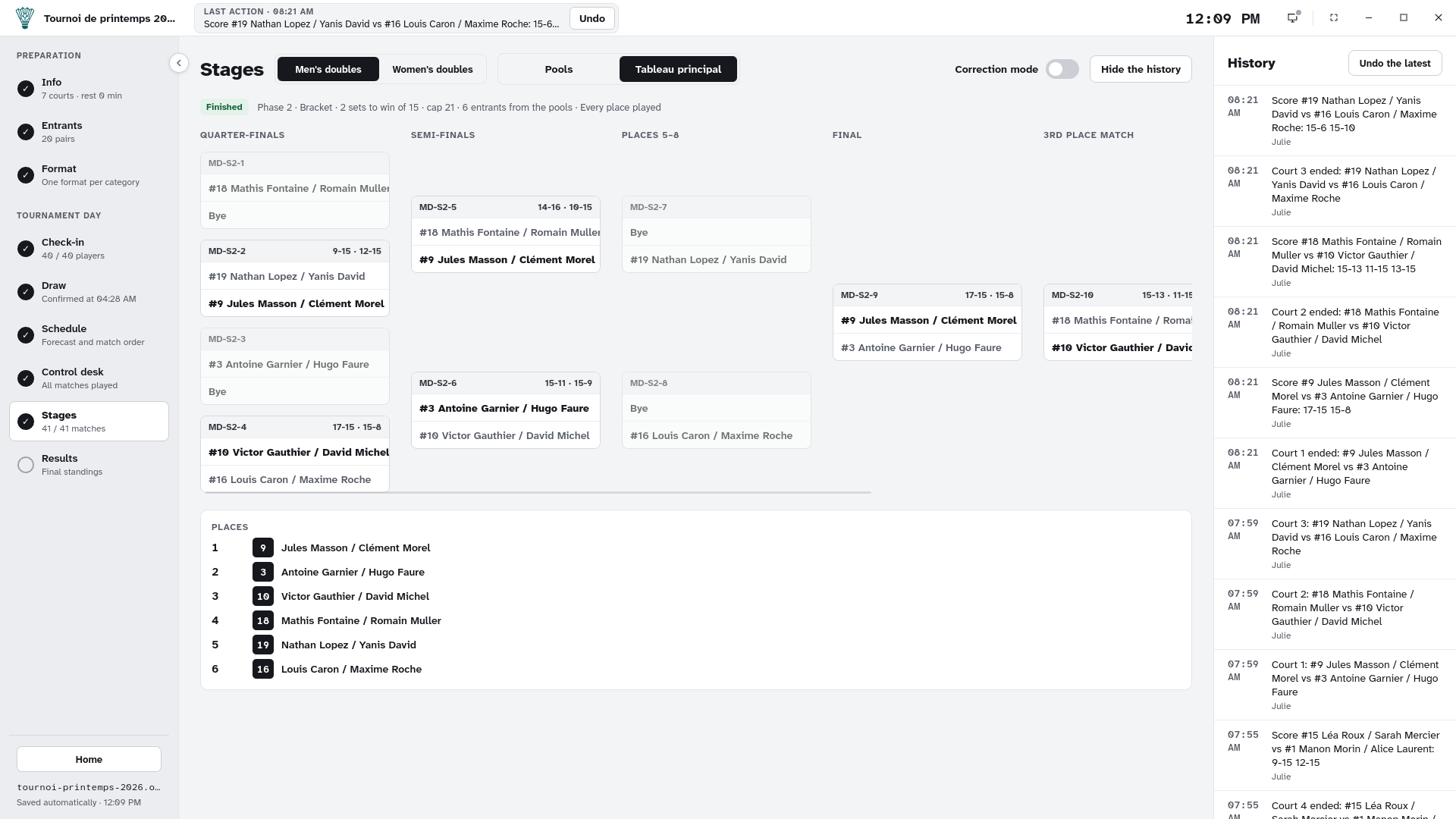
The main bracket and its places -
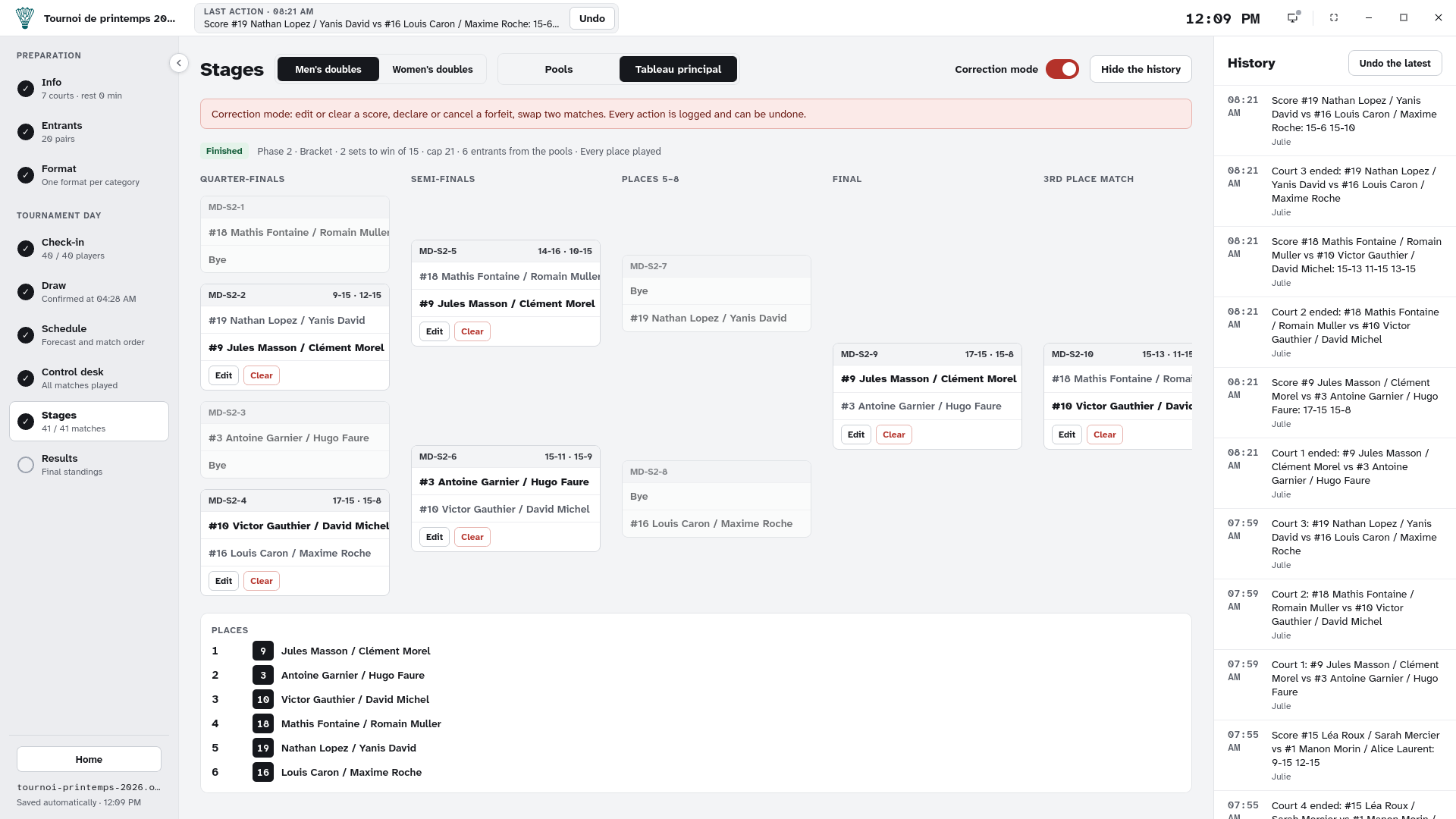
Correction mode and the history
Publish the results and archive
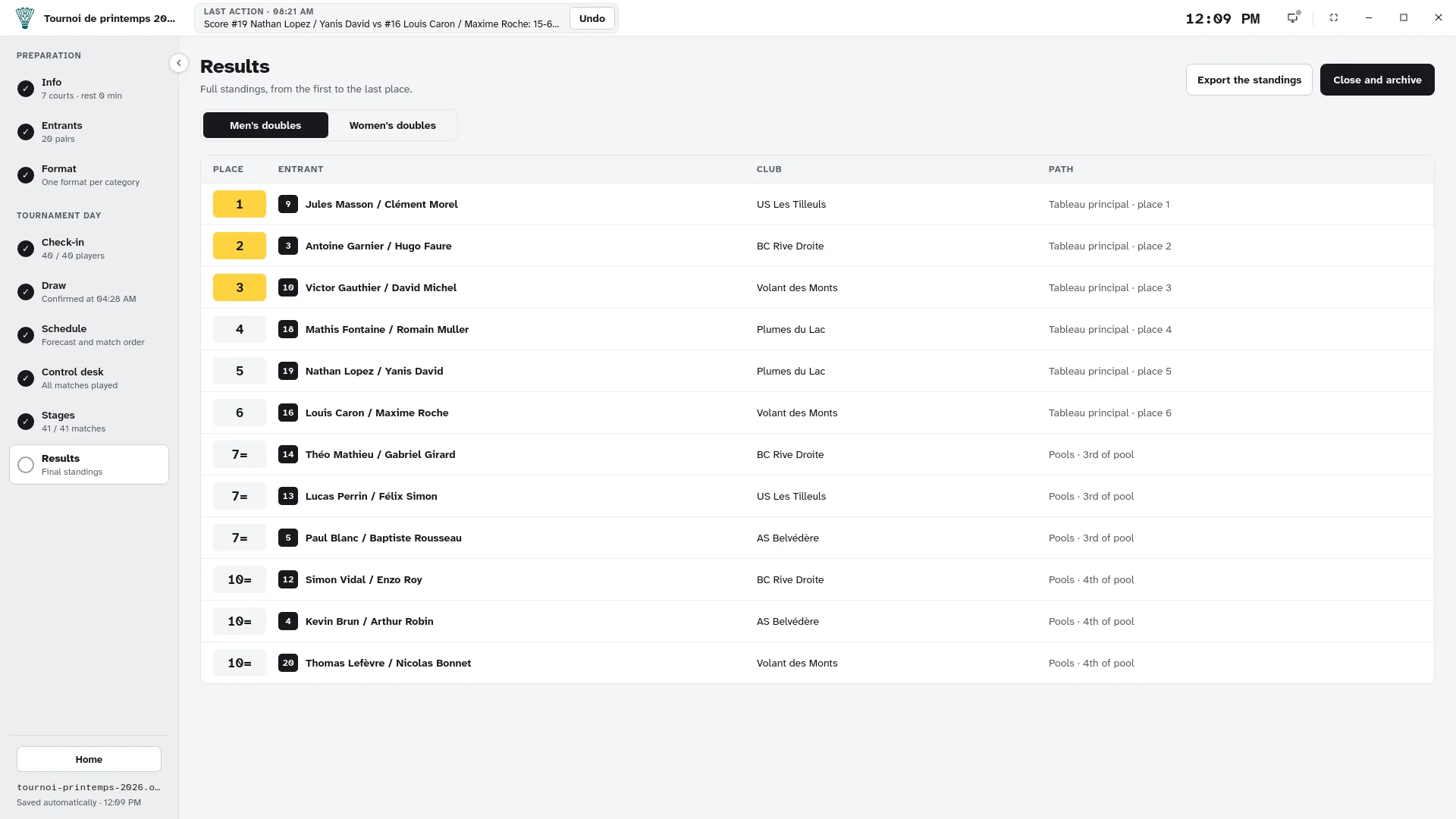
When the last match is over, the Results screen gives the full standings of each category, from first to last place, with each entrant’s path. For every place to be unique, use full placement brackets; otherwise, entrants losing in the same round are tied.
- Export the standings saves a CSV file, to open in a spreadsheet or send to the clubs.
- Close and archive saves a copy of the tournament file where you choose, then closes it.
The archived file holds the whole tournament: entrants, draw, scores and history. Keep it for next year, and duplicate it to start again from the same format.
Enjoy your tournament!
-
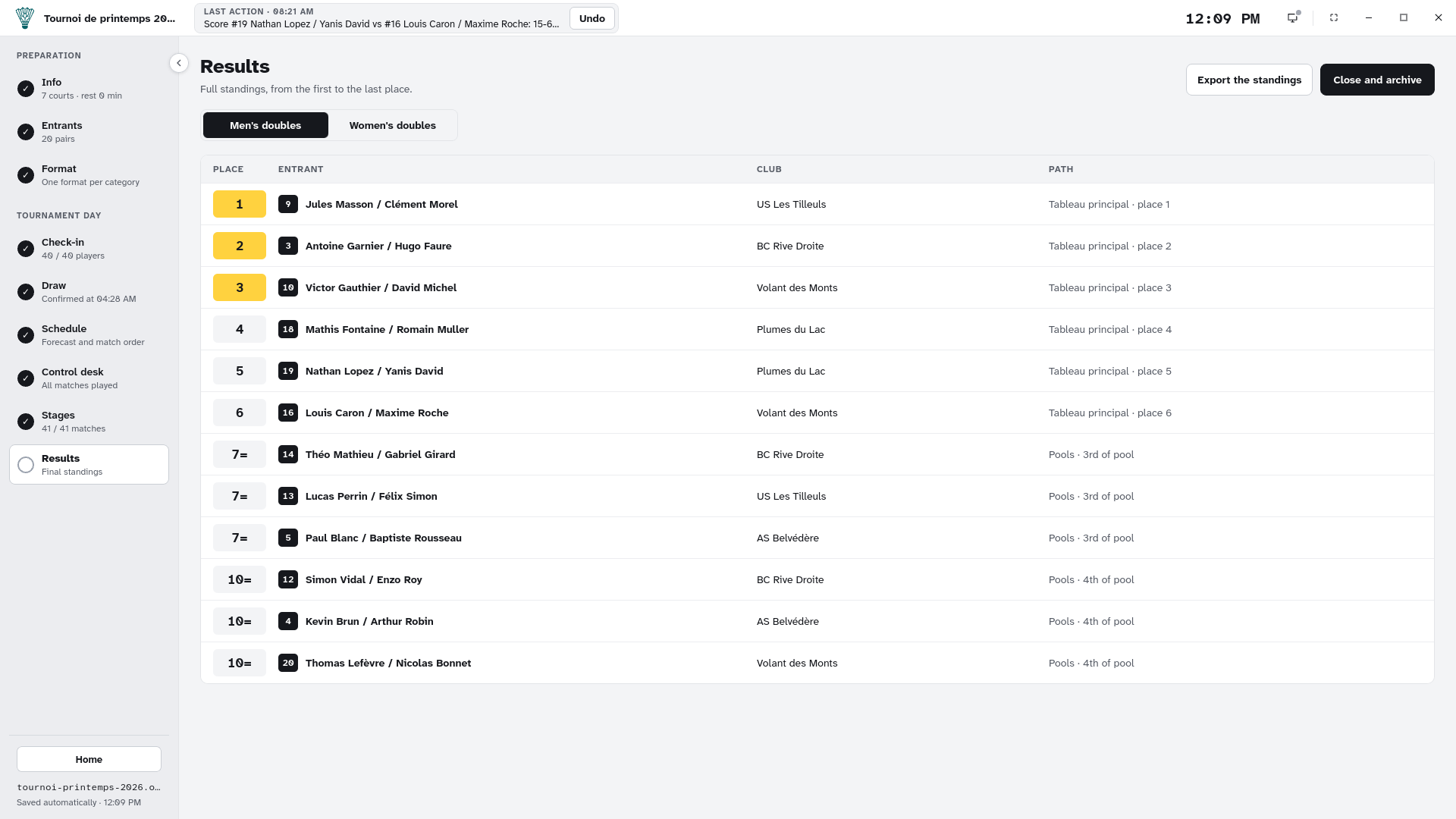
The full standings, ready to export